
Create a final report
You can create final reports directly from analysis results in Ion Reporter™ Software. You can customize the reports with variants that you select, and report sections that you can reorder, add and remove. The report layout and content are visible as a preview in the software that you can review and change as you create the report. When you are satisfied with the changes, you can publish a final report or save the report as a final report template.
Only one final report for each analysis can be published for later use. After a report has been published, you cannot change flags for MyVariants, classifications, or notes that are associated with the analysis results. A final report that is published to PDF file format cannot be edited. To create a different report for the analysis, you need to reanalyze the sample using the same analysis workflow, then create and publish the final report.
You can add a section for one or more images in PNG, GIF, JPG, or JPEG file formats. Each image must include a title, and can include an optional description, which appears next to the image. There is no limit on the number of images that can be added to a report, but all images are in a single section in the published final report.
- In the Analyses tab, click Overview.
- Click an analysis link to open the Analysis Results screen.
- Select the variants to be included in the report by selecting the checkbox next to each variant. You can also select the checkbox at the top of the column to select all variants to be included in the report.
-
(Optional) Update the notes, flags, or classifications for each variant.
-
In the
 (Flag) column, expand
  (Flag list), then select the appropriate flag.
Option
Description
Important
Important is used to track variants that are relevant to the research. When selected, the flag icon is orange in the row of the variant and the variant is added to the MyVariants database.
Ignore
Ignore is often used to indicate known false positives or false negatives, or variants that are not associated with the research area. When selected, the flag icon is gray in the row of the variant and the variant is added to the MyVariants database. None
All variants are marked None by default. Select None to remove an Important or Ignore flag. Variant flags that are changed to None are removed from the MyVariants database.
-
In the
 (Note) column, click
  (Add) , click the Notes tab, then enter a note for the variant. When you are finished, click Add Note
-
In the
- Click Generate Report.
-
(Optional) If a final report template is associated with the analysis workflow, update the Select Final Report Template dialog box.
-
Select a template, then click OK.
-
Click Create Report Template to create a new report template. For more information, see Create a final report template from analysis results.
If a report template is not associated with the analysis workflow, go to the next step.
-
-
Enter information into the report sections.
For more information, see Available report sections.
-
To add one or more images to the final report, add an Image section and the image.
-
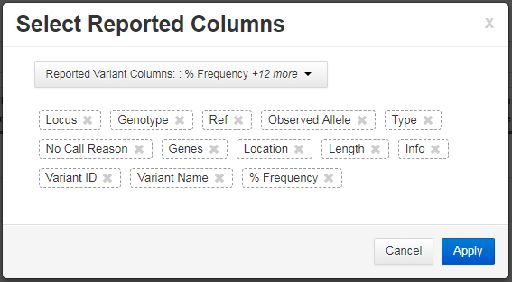
(Optional) Scroll to the Reported Variants section, then double-click Select Columns.
Use the Select Reported Columns dialog box to change the view.
-
Delete columns—Click the x in the column name to remove that column from the report.
-
Change column order—Rearrange the column names, for example, to reflect the position that you want the date to appear in the report, then click Apply.
-
- In the Sign-Off section, enter the name and title for a handwritten signature, then click Add. If needed, repeat this step to add information for additional required signatures, until all designated signers are added.
-
(Optional) In the Footer Section, remove the Thermo Fisher Scientific logo from the report footer, then add a custom logo. Acceptable image file formats are PNG, GIF, and JPG.
- Click Remove to remove the Thermo Fisher Scientific logo from the report footer.
- Click Upload Logo, then click Select File to browse to a custom logo file.
- Select the file, then click Open to include the logo in the report footer.
-
When you are satisfied with the report design, click Next.
A preview of the PDF report opens. Click Configuration to go back to the previous screen to change the report sections before publishing.
-
When you are satisfied with the report sections, click Lock and Publish, then review the PDF preview. If edits are needed, click Cancel, then make the edits.
IMPORTANT! After a report is published, the analysis that is used for the report cannot be edited. That is, you can no longer edit flags, classifications, or notes that are associated with the analysis results.
- Click Publish to create the final report.
- Click Download to download the published report.