
Create a final report template from analysis results
You can create a new final report template and save it for future analysis reports. As you create the report template, you can reorder sections, and add or remove sections.
You must have the Report role to create final report templates.
- In the Analyses tab, click Overview.
- Click an analysis link to open the Analysis Results screen.
- In the Analysis Results screen, click Generate Report.
- In the Generate Report screen, in the Configuration step, configure the report.
- In the Organization Information section,
Enter an organization name.
(Optional) To use a logo on the report, click Upload Logo, then in the Upload Header Logo dialog box, click Select File to browse to the logo file. Acceptable formats are PNG, GIF, and JPG.
(Optional) Enter the organization address.
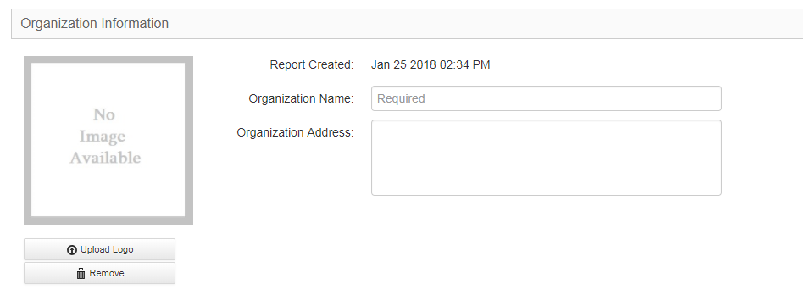
- In the Organization Information section,
- (Optional) Remove the Thermo Fisher Scientific logo from the report footer and add a custom logo. Acceptable formats are PNG, GIF, and JPG.
- Click Remove to remove the Thermo Fisher Scientific logo from the report footer.
- Click Upload Logo, then click Select File to browse to a custom logo file.
- Select the file, then click Open to include the logo in the report footer.
- In each section, use the up, down, and X icons to move or delete sections from the template.
Or, click Actions, then select one of the following to view a list of the sections that you can drag-and-drop into the report preview:
Option
Description
Add all
Add all of the available report template sections to the customized template or report.
Remove all
Remove all of the report template sections from the customized template or report.
Reset
Return to the template to the default section configuration.
The sections that you can add to the report template are listed under Available Sections.For example, to select a limited set of sections, click Remove all, then drag and drop any of the Available Sections back into the report template.
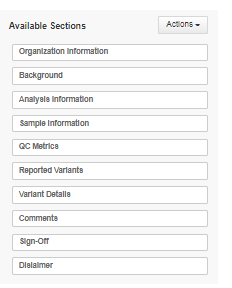
For more information about the sections that you can add to the report template, see Available report sections.
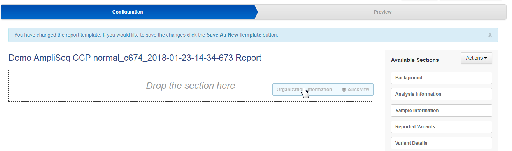
- To add one or more images to the report, add an Image section and the image.
- Click Save As New Template.
- Enter a template name, then click Save.