
View notifications
The Notifications screen lists notifications for files that are generated by the Ion Reporter™ Software and for files that have been shared. Notifications are shown both for files that are shared by you with another user and for files that you share with another user.
From the Notifications screen, you can download completed analyses, reports, and files that have been shared with you by another user.
- To view the Notifications screen, select one of the following actions.
In the Home tab, select Notifications.
From any screen, click
 (Notifications) in the menu bar.
The Notifications screen opens.
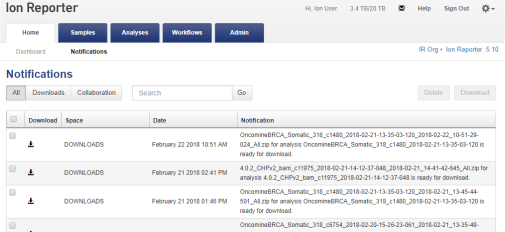
The filename and status of a given file are shown in the Notification column.
- (Optional) Click one of the following to change the list view.
Subtabs for Notifications window
Description
All
Show only notifications for all files that are available for download and files that have been shared.
Downloads
Show only notifications for all files generated within the software that are available for download.
Collaboration
Show only notifications for all files that have been shared.
- (Optional) Enter a term in the search box to search for a file.
- Select one of the following options.
Option
Description
Download a file
Do one of the following:
Click the
 (Download) link in the row of a notification.
 Select the checkbox of a notification, then click Download.
Delete the notification
Select the checkbox for a notification, then click Delete.
Note: Deleting a notification deletes only the notification from the notification list and does not delete the file. To delete a file, see the appropriate procedures for that file type.
File type
Topics
Analyses
Analysis files contain the results of sequencing runs. For more information, see Analysis results.
Samples
Sample files contain a list of all samples from a sequencing run that are to be analyzed. For more information, see Import and manage samples.
Reports
Reports are summaries of sequencing runs. For more information, see Create and view reports for details.