
Download Quality Control (QC) files
You can download files from a Quality Control (QC) report that you open in Ion Reporter™ Software. The Quality Control (QC) file download contains a compressed directory with the following files:
-
id_QC.pdf: A copy of the QC Report PDF file. The QC report PDF file for a completed analysis contains a high-level summary of QC metrics. For more information, see Quality control (QC) metrics.
-
QC/sample_name/AnnotatorActor/variome-stats.csv: A tab-separated file of variants statistics for this sample. These statistics are also listed in the QC report PDF file.
-
QC/sample_name/StatsActor/amplicons_low_no_coverage_statistics.txt: Coverage statistics by amplicon.
-
QC/sample_name/StatsActor/analysis_low_no_coverage_statistics.txt : Coverage statistics for the analysis.
-
QC/sample_name/StatsActor/genes_low_no_coverage_statistics.txt : Coverage statistics by gene.
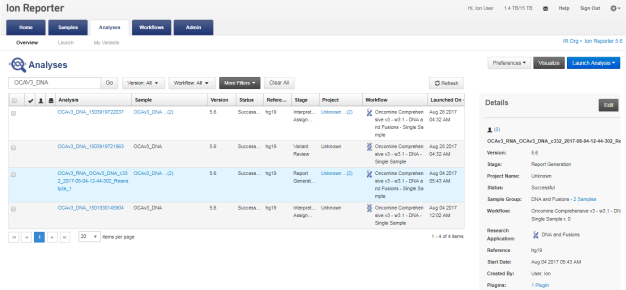
- In the Analysis tab, click Overview.
-
Find the analysis of interest, then select the row that lists the analysis to generate a QC report.
Alternatively, you can select the checkbox in the row to generate the QC report.
-
Click
 .
.
A view of the QC Report opens.
-
Click to download the QC Package to Ion Reporter™ Software.
If you use Ion Reporter™ Software on Connect, open the Home tab, then click Notifications to open the notifications list, then find the analysis of interest and click
 (Download) to download the QC package.
-
If you use Ion Reporter™ Server, download the file through the browser that you use for Ion Reporter™ Software. Then, find the QC package in the folder that is used for downloads.
The downloaded file name is qc-report-id.zip, where id is a system-generated analysis identifier.