
Gene Fusions tab
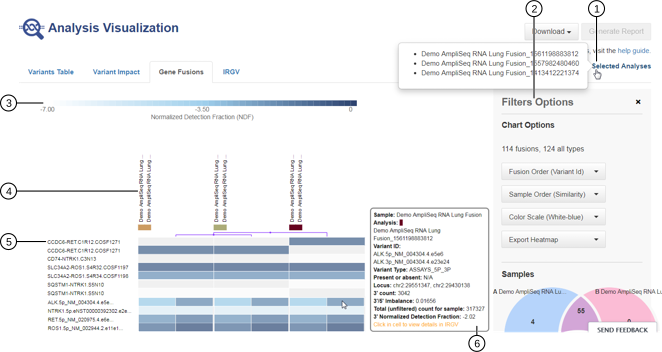
The Gene Fusions tab provides visual representation of the detected gene fusion variants. The data is quantified using the Normalized Detection Fraction (NDF) score and presented in the form of a heat map. NDF is a logarithm of the read count divided by the total number of reads per sample. The NDF score ranges from −7.0 to 0, where values closer to 0 = higher number of detected fusion events and values closer to −7 = lower number of detected fusion events.
Use the menus in the Filter Options pane to limit the data that is displayed in the heat map.
-
For more information on the Samples Venn diagram, see Samples Venn diagram in Filter Options.
-
For more information on using the Chromosome filter, see Chromosome filter in the Filter Options.
-
For more information on using the Filter Chains filter, see Filter Chains filter in the Filter Options.
-
Click Selected Analyses to view the list of the analyses that are visualized.
-
Heat map Filter Options.
-
Heat map legend: Normalized Detection Fraction (NDF). Hover over the legend the view the relationship between the NDF score and the colors used in the heat map.
-
Samples and analyses: hover over sample and analysis names to view the sample and analysis details.
-
Gene fusions: hover over the gene fusion variant ID to view the details for that gene fusion or click on the variant ID to view the details for that variant in IRGV.
-
Variants: hover over a variant to view the details pane for that variant, or click in the cell to view the details for that variant in IRGV.
Use the following Chart Options to customize the heat map view.
|
Chart Option |
Description |
|---|---|
|
Fusion Clustering |
From the Fusion Clustering dropdown list, select one of the following options to arrange the order in which the fusion variants are listed in the heat map.
|
|
Sample Order |
Select one of following options from the Sample Order dropdown list to arrange the order in which the genes are listed in the heat map.
|
|
Color Scale |
Select a color scale to customize the colors that are displayed in the heat map. |
|
Export Heatmap |
You can export and save your heat map in PNG, SVG, and CSV file formats. The file is automatically downloaded once you make your selection from the Export Heatmap dropdown list. |